What universal means when choosing an app
A universal TV remote app usually aims to bring control of multiple supported devices into one interface. That does not establish support for every television, model year or streaming box. The useful question is specific: does this app support my device and the actions I need? Start with the exact model and platform, then check the developer’s published compatibility information. A brand name alone leaves too much uncertainty.
Smart TV and Wi-Fi are starting points
A Smart TV label tells you that the television has smart features. It does not tell you which remote-control interface an app can use. Two TVs with Wi-Fi can have different operating systems, pairing processes and available commands. Look for explicit platform support and setup instructions. For Google’s own iPhone remote, the phone and TV need to be on the same Wi-Fi network. Other apps must be checked against their own requirements.
Separate the television from a streaming device
If an external streaming device provides your home screen, select a remote that supports that device. Your TV may only be displaying its HDMI output. Menu navigation, television power and sound-system volume are different tasks, so do not assume a successful connection gives you every control. Test each action you care about. This is especially useful when you have a soundbar or receiver alongside the television.
Check what works before putting away the original remote
Try opening a menu, moving between items, selecting a show and returning to the home screen. Then check volume and playback. Test keyboard input only after selecting a text field on the television. Keep the physical remote available during setup: you may need it to approve pairing, change a network setting or wake the device. A phone remote is most helpful when it complements a working setup, rather than being your only way to configure it.
Can a universal app work without Wi-Fi?
There is no single answer for every app and device. Check the stated connection method and any required hardware before downloading. A Wi-Fi remote cannot be assumed to control a disconnected television, and an app description mentioning infrared needs its hardware requirements checked separately. If your TV is offline, first use its supported controls to reconnect it. Installing more apps does not resolve a missing connection method.
Choosing a remote for several TVs
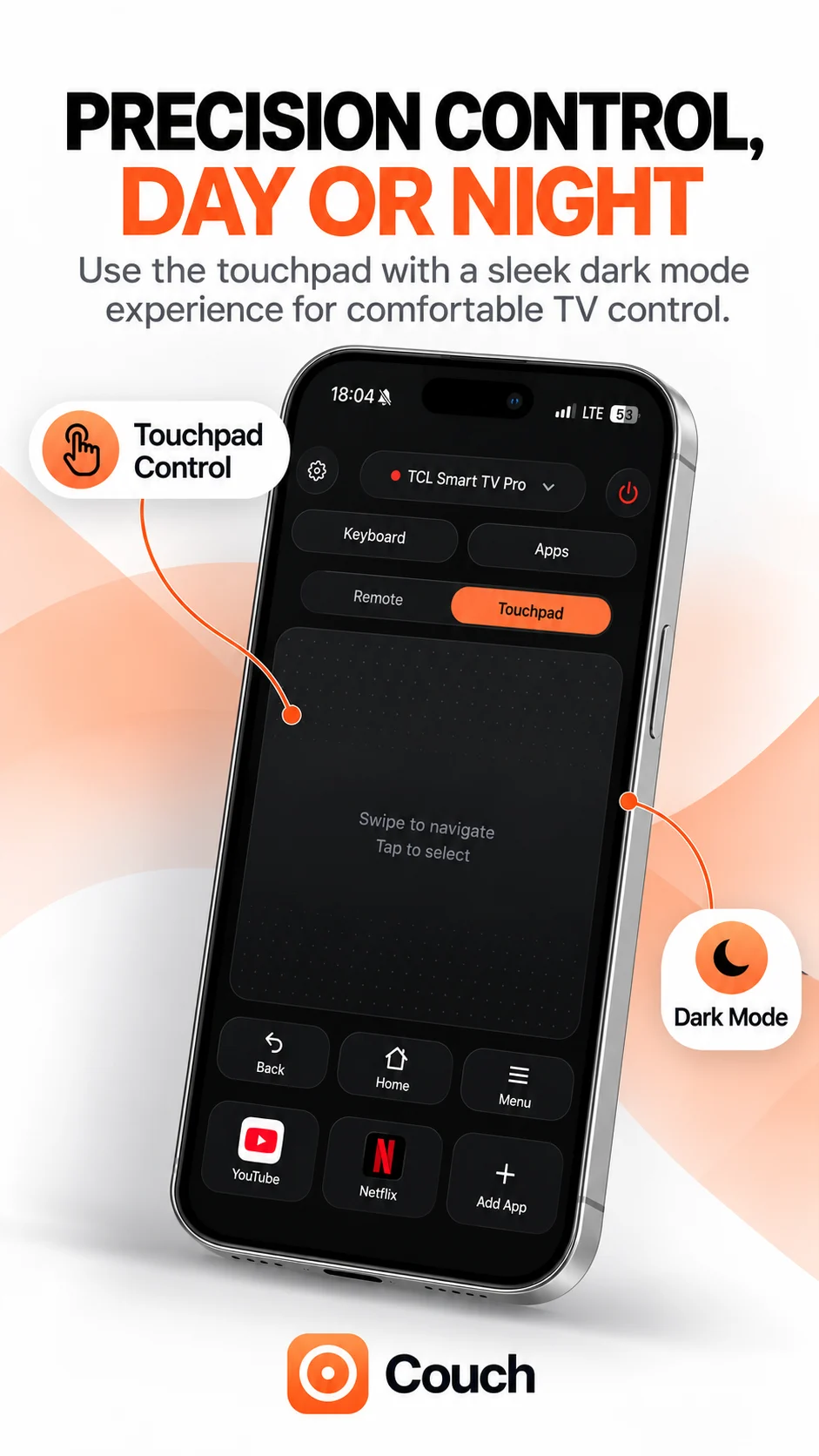
Make a short list of every device you want to control, including its model and platform. Confirm each device separately and give connected TVs recognisable names where the app allows it. Then compare how easily you can switch between devices and whether your preferred controls are available on each. Couch’s interface combines several control styles; consult its compatibility information for the TVs you use. Choose an app based on verified support and daily usability, rather than the universal label alone.
Official references
Your TV. One Tap Away.
Explore Couch’s remote, touchpad, keyboard and app shortcuts for compatible TVs.
Check compatibilityApp Store link coming soon