Choose a remote that supports your Samsung TV
If you want to control a Samsung TV from your iPhone, begin with the model’s supported remote options. Samsung documents SmartThings as a way to control compatible TVs from a phone. This guide describes that official setup; it does not establish Samsung support for every third-party app. Locate the television’s model number before you start, and keep its original remote nearby so you can respond to on-screen prompts.
Prepare SmartThings and the TV
Install SmartThings on your iPhone and turn on the television. Samsung’s setup guidance calls for both devices to use the same Wi-Fi network and Samsung account. Check those details before discovery. Network names that look similar can still represent different connections. Avoid trying to solve pairing by changing unrelated router or security settings.
Add the television and approve pairing
In SmartThings, open Devices and use Add device. Choose TV and Samsung, then follow the location and room prompts and select your television. Samsung says pairing varies by model: you may need to enter a PIN or approve the request on the TV. Finish the app’s naming and completion prompts. Interface labels can change with app updates, so follow the current on-screen flow.
Test the controls you need
Open the added TV in SmartThings and try its available remote controls. Check menu movement, selection and the sound control you use most often. If a button does not behave as expected, record which action failed and which device handles it. A streaming box or separate audio system may be involved. This makes a support question much clearer than saying the entire remote does not work.
If the TV does not appear
Recheck the setup requirements and confirm the television is on. Look at both screens for an unfinished approval request. If the iPhone app requests local discovery access, review its permission under Settings, Privacy & Security, Local Network. Update or restart devices using their supported procedures, then try again. If discovery still fails, consult Samsung’s guidance for your model and collect the model number, app version and exact error.
If you have lost the physical remote
Do not assume the app can finish first-time setup without an on-screen approval. Consult your television manual for its physical controls and supported setup alternatives. If the TV is already registered, try opening its existing device entry instead of adding a duplicate. Keep access to a supported physical controller for network changes or other tasks the phone cannot complete.
Comparing SmartThings with Couch
Use the same small checklist for any alternative: confirmed model support, clear pairing instructions and the controls you actually need. Couch presents remote, touchpad, keyboard and app-shortcut interfaces. Samsung compatibility should be checked separately before choosing it for your television. For a broader comparison, read our guide to choosing an iPhone TV remote app.
Official references
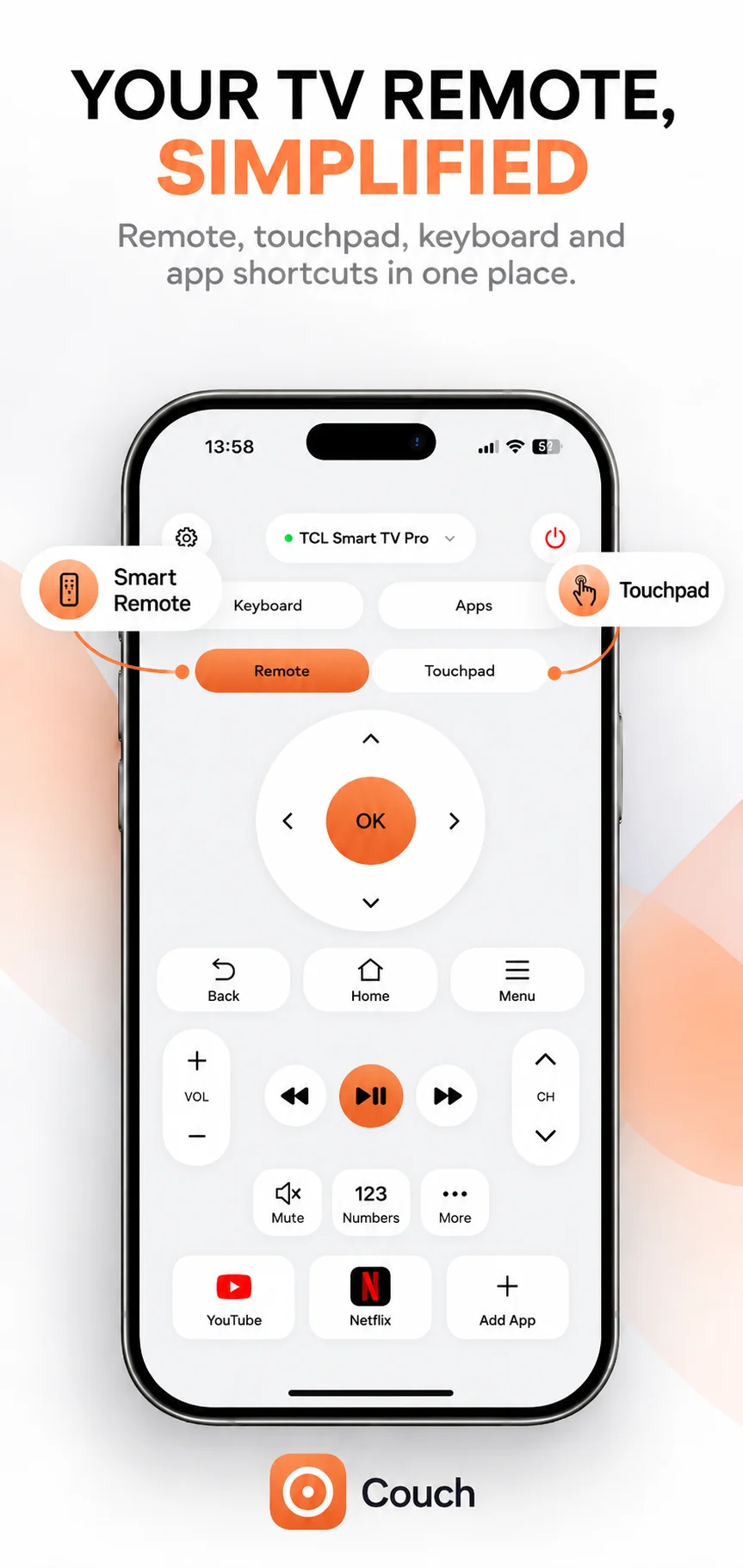
Your TV. One Tap Away.
Explore Couch’s remote, touchpad, keyboard and app shortcuts for compatible TVs.
Check compatibilityApp Store link coming soon