Start with the device you actually watch
The right TV remote app for iPhone is the one that supports your television or streaming device and makes your everyday actions comfortable. Before comparing screenshots, find the TV model and operating system in its settings or manual. If you watch through an external streaming box, record that device too. Controlling the box’s menus and controlling the television’s power or volume can involve different capabilities.
Choose between a platform app and a multi-platform remote
A platform-specific app is a useful starting point when its documentation lists your device. Samsung provides SmartThings guidance for compatible Samsung TVs; Google provides an iPhone virtual remote for Google TV and Android TV. A multi-platform app can be convenient if you use several televisions, but its supported-device list still matters. The word universal should be treated as a prompt to check compatibility, rather than a promise about every screen in your home.
Compare navigation before extra features
Think about what you do most often: open an app, browse a menu, pause a show or adjust the sound. Look for clear navigation and a selection control, then check Back and Home. If both a touchpad and directional buttons are available, try each with the same task. A control layout can look attractive yet feel awkward when you repeatedly reach for a small button. A predictable response on your own TV matters more than the number of icons in a screenshot.
Check keyboard input and app shortcuts separately
A phone keyboard can make entering a show title more comfortable, but text entry may depend on the TV platform and active field. App shortcuts can reduce menu navigation where launching those apps is supported. Test a short search term and one shortcut before assuming every TV screen supports the feature. Keep your streaming subscriptions separate from the remote app: a shortcut opens a service, but does not provide its paid content.
Read the price and permission details
Compare the actual App Store listing and purchase screen. Check whether access is weekly, monthly or a one-time purchase, which features require payment, and how any trial renews. For an app that discovers devices locally, an iPhone Local Network request may be part of setup. Review permissions in the context of the feature you are using. An inexpensive app is poor value if your television is unsupported; a longer feature list is unnecessary if you only need basic navigation.
A practical decision checklist
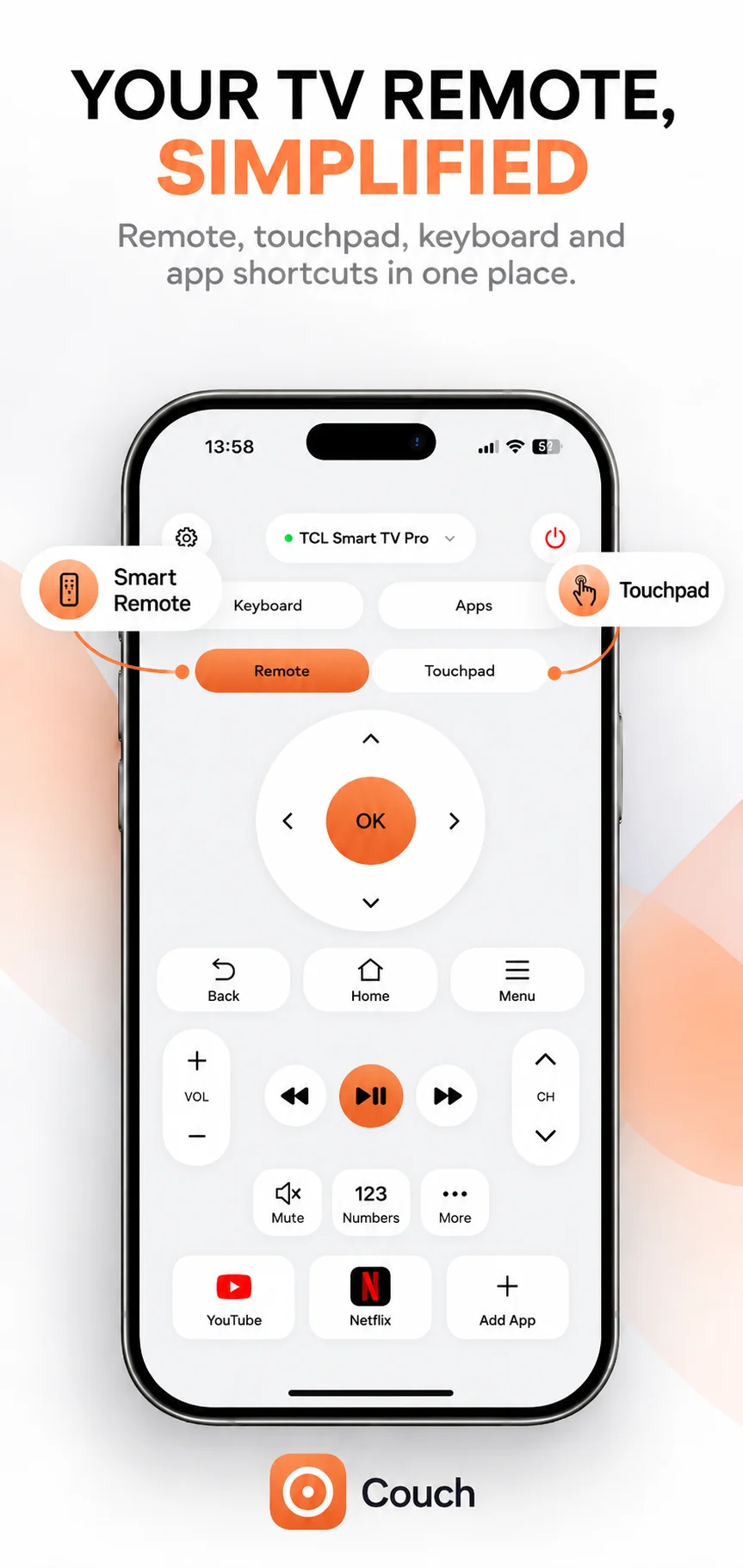
Write down your TV model, streaming device, three essential controls and preferred payment option. Confirm support first, connect using the app’s documented steps, and test those controls before choosing a plan. Couch brings remote, touchpad, keyboard and shortcut controls together in its supplied interface. Check its current compatibility information for your device before relying on a particular feature. If the connection fails, use our TV discovery guide to separate a network problem from unsupported hardware.
Official references
Your TV. One Tap Away.
Explore Couch’s remote, touchpad, keyboard and app shortcuts for compatible TVs.
Check compatibilityApp Store link coming soon