Start with your TV platform
Using an iPhone as a TV remote starts with compatibility. Check the TV’s platform and model, then choose an app that explicitly supports them. Built-in Wi-Fi and a Smart TV label are useful information, but do not establish that a particular remote app will work. Record the model number from your TV settings or label before checking support.
Prepare the connection
Follow the selected app’s network requirements. For example, Google’s iPhone virtual-remote troubleshooting guide requires the phone and Google TV to share a Wi-Fi network. On iPhone, open Settings → Wi-Fi to check your connection; check the TV’s network settings separately. This Google TV requirement is not a verified Couch setup instruction.
Check permission and pairing prompts
If your remote app requests Local Network access, review the request and allow it if you want it to discover nearby devices. You can review existing permissions in Settings → Privacy & Security → Local Network. Then use the pairing process shown by your chosen app and TV. Do not assume every platform uses the same code or approval screen.
Try one control at a time
Begin with navigation and selection. Then try Back, Home, volume and playback where supported. If one action is unavailable, it does not necessarily mean the whole connection failed. A TV, external streaming device and sound system can expose different controls.
Where Couch fits
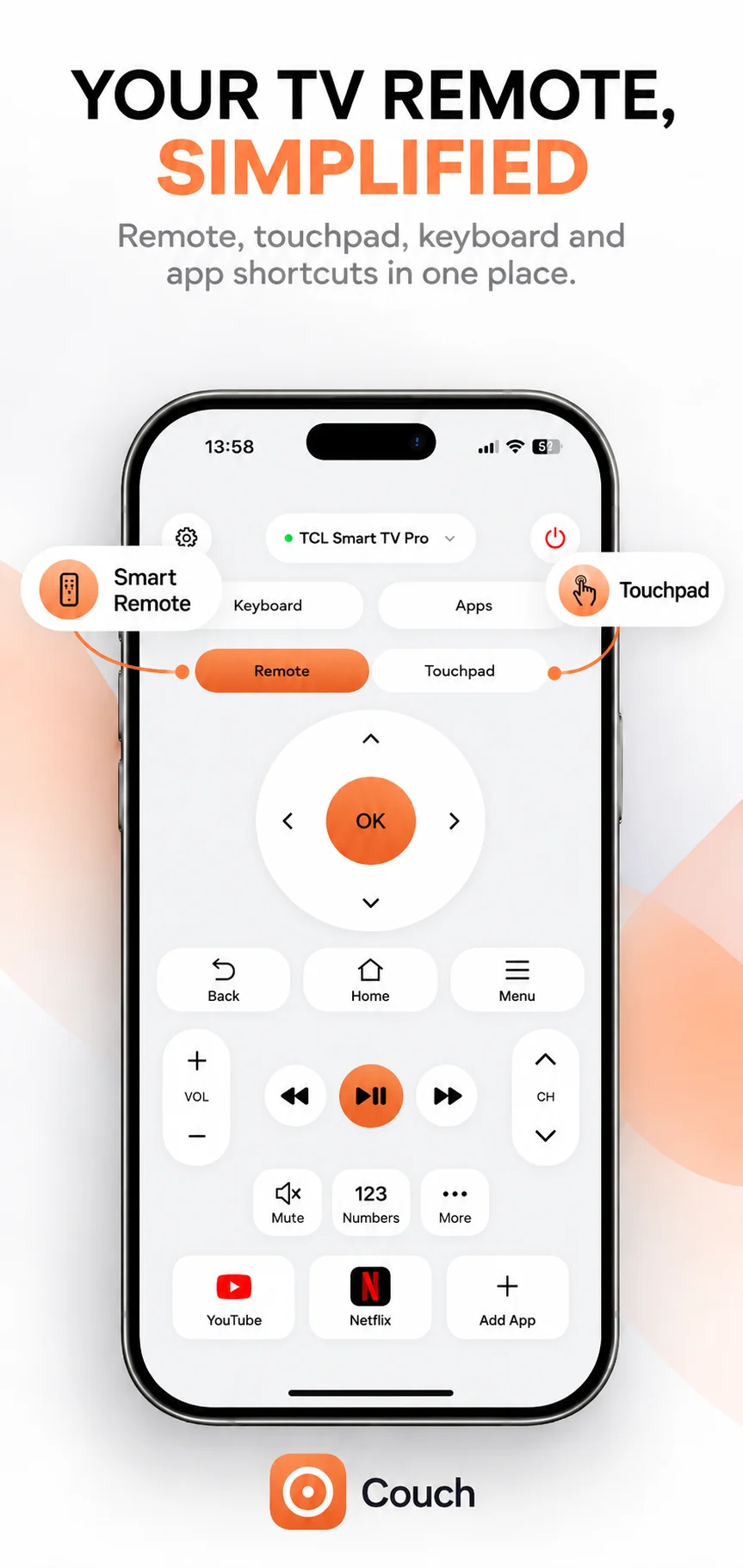
Couch’s supplied interface combines a remote, touchpad, keyboard and app shortcuts. Check its compatibility page before relying on a specific TV model. Couch’s model-specific pairing instructions are still awaiting confirmation. Phone remote control also differs from casting: sending a video to a TV and navigating the TV interface are separate capabilities.
Official references
Your TV. One Tap Away.
Explore Couch’s remote, touchpad, keyboard and app shortcuts for compatible TVs.
Check compatibilityApp Store link coming soon