Which app should you start with?
LG ThinQ is LG’s official starting point for phone control of a compatible television. Install it from the App Store and check your model’s support information before pairing. A television having Wi-Fi does not establish that every remote app supports it. This guide covers LG’s documented ThinQ registration flow; other apps can have different requirements.
Prepare the television and iPhone
Turn on the TV and connect the iPhone to the same Wi-Fi network. LG recommends switching off cellular data during registration. Keep the television screen visible: the pairing code appears there. Have a working physical controller available, particularly if the TV has not yet joined your home network. First-time network setup and everyday remote use are separate tasks.
Add the TV and enter its PIN
Open ThinQ, sign in and choose Add a Device, then Select Device. Select your television from the discovered devices and enter the PIN displayed on the TV. Complete the remaining prompts. LG’s guide offers an optional account link for its AI Home Board; follow the choice appropriate to your setup. Interface labels can differ with app updates.
If the LG TV does not appear
Recheck the network selected on both screens before changing anything else. Check the model’s ThinQ support and network requirements in its manual. LG’s general registration guidance lists model restrictions, so avoid assuming that all recent televisions behave alike. Record whether the failure happens before discovery, during PIN entry or after registration: each points to a different stage of the connection.
What if you lost the original remote?
An iPhone remote is easiest to use after the television is configured. If you cannot get the TV online or reach the pairing screen, check the model manual for its physical controller and supported setup options. Do not assume a downloaded app can operate a television that has no usable network connection. A compatible replacement controller may be needed to complete initial setup.
Test the controls you actually need
After pairing, try one action at a time: navigating a TV menu, selecting an item, returning to the previous screen and changing sound. Note which device produces the sound if a soundbar or receiver is connected. Testing these tasks gives you a practical checklist when comparing apps, rather than relying on a broad universal-remote label. Keep your original controller until the essential actions are confirmed.
Choosing another iPhone remote app
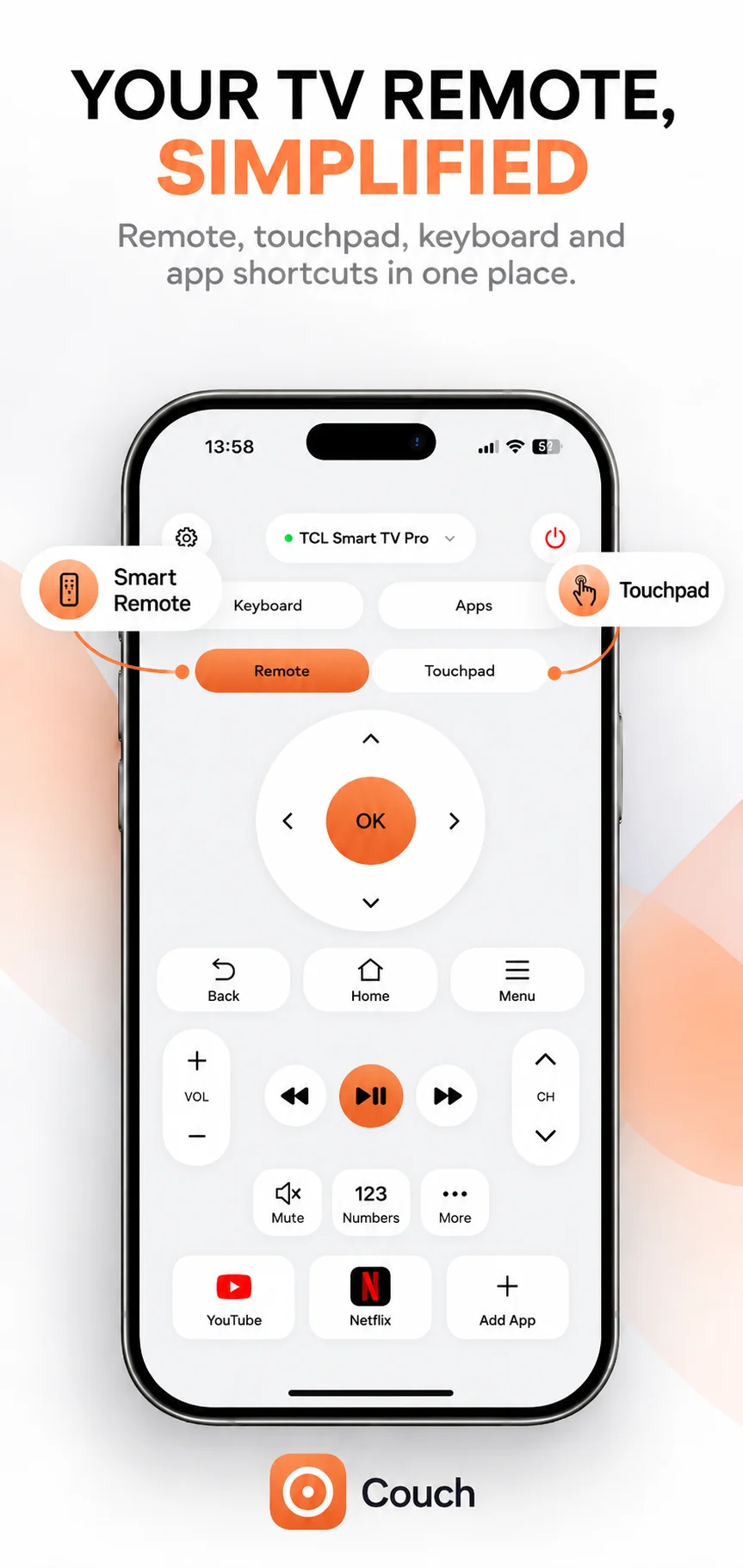
Compare model compatibility, clear subscription terms and the controls you use daily. Couch presents remote, touchpad, keyboard and shortcut interfaces; check its current support details before choosing it for your particular LG TV. This article documents ThinQ setup and does not establish Couch compatibility. Our touchpad-versus-buttons guide can help you choose a control style once a supported connection is working.
Official references
Your TV. One Tap Away.
Explore Couch’s remote, touchpad, keyboard and app shortcuts for compatible TVs.
Check compatibilityApp Store link coming soon