The quickest place to start
If your Samsung TV remote is missing, start with the television’s physical controller. Samsung documents built-in buttons as an alternative for turning on the TV and accessing basic controls. The location and available functions vary by model. Find your model number and its manual before assuming a button sequence applies to your screen.
Where to look for the TV controller
Samsung lists several common positions: near the bottom-right area of the rear panel, beneath the centre of the front, or along the lower-right bezel when facing the television. Some controllers resemble a small joystick; others use a single button. Consult the model manual for its diagram. If the TV is wall-mounted, use a light or phone camera to inspect accessible edges rather than pulling on the screen.
Use the power action for your model
Locate the controller and follow the manual’s power instruction. Samsung’s general guide describes holding the centre button to switch on compatible models. Do not assume every controller uses the same short press, long press or menu sequence. Once the television starts, watch the on-screen control menu before making further selections. Physical controls may offer fewer functions than a complete remote.
If the television still does not turn on
Check that the power cable is connected and the outlet is supplying power. Distinguish a missing remote from a television that cannot start using its own controller. If the TV remains unresponsive, consult Samsung support for the model rather than repeatedly installing phone apps. A remote app cannot solve a disconnected power cable or hardware fault.
Can your iPhone turn it on instead?
For a compatible Samsung TV, SmartThings is an official phone-control option. If the television is already added, open its existing device entry and try the available power control. First-time setup is different: Samsung’s instructions start with the TV on and can require a PIN or on-screen approval. A downloaded app is therefore not a guaranteed way to wake an unconfigured TV.
When you need a replacement remote
Keep a supported physical remote available for setup and tasks that the built-in controller cannot perform. If you replace the remote, match it to the television’s model and check any pairing requirement before purchasing. Record the model number and remote type; a similar appearance does not establish compatibility. After restoring control, configure a supported phone remote as a convenient backup.
Choosing a phone remote after setup
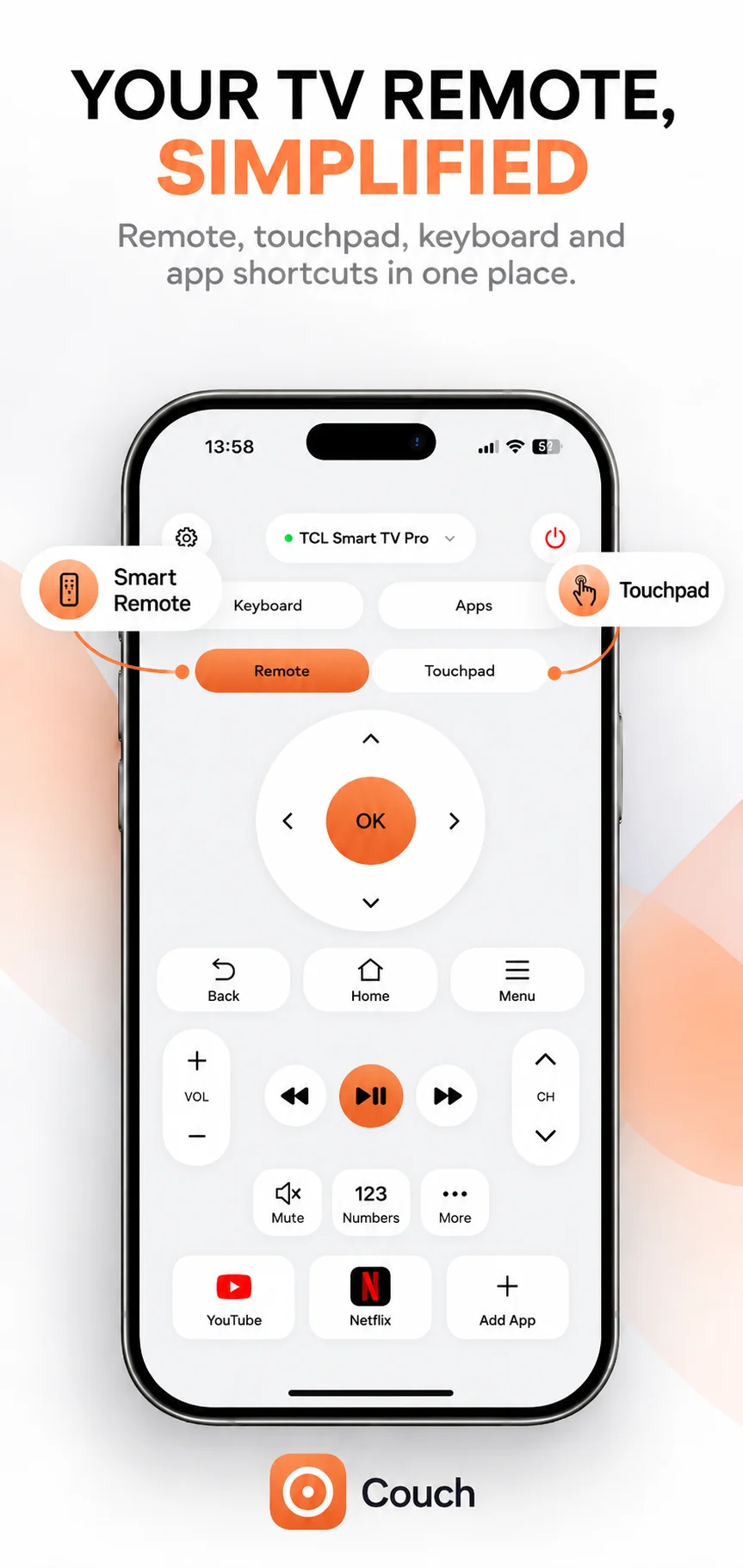
Test navigation, selection, Back and volume separately. If you use an external streaming box, check which device each action controls. Couch offers remote, touchpad, keyboard and shortcut interfaces; consult its current compatibility details before choosing it for a Samsung model. For the documented SmartThings pairing flow, read our Samsung TV remote app guide.
Official references
Your TV. One Tap Away.
Explore Couch’s remote, touchpad, keyboard and app shortcuts for compatible TVs.
Check compatibilityApp Store link coming soon