Check which device you want to control
Google documents its iPhone and iPad app as a remote for Google TV and Android TV. Check your television or streaming device’s platform before starting. If an external device provides the interface you watch, pair with that device. A television brand or Google Play icon alone is not enough to identify the setup.
Connect and pair your iPhone
Put your iPhone and TV on the same Wi-Fi network. Open the Google TV app, choose TVs nearby, and select your device. Enter the code shown on the television and tap Pair. These are Google’s iOS instructions; they are not Couch pairing instructions. Keep the TV screen visible while connecting so you can read the current code.
Try navigation, playback and text entry
Once connected, test the available controls with a simple task such as finding a show. Google lists playback, volume and text-entry capabilities for its remote connection. Actual behaviour should be checked in your setup. Select the TV’s search field before trying phone keyboard input, and begin with a short show title. This separates a working remote connection from a field that does not accept typing.
If your TV is missing from the list
Google recommends checking the shared Wi-Fi connection first. If that does not resolve the problem, its troubleshooting procedure includes unplugging the Google TV device for ten seconds, reconnecting power and setting up the virtual remote again. Wait for startup to finish before retrying discovery. Keep your physical remote available for checking the TV network.
If navigation works but volume does not
Google’s troubleshooting guide says to check Volume control under Settings, Remotes & Accessories, Set up remote buttons, and select Auto (CEC). Follow the instructions for your device. Volume behaviour can involve the television or audio equipment, so record which component is producing sound before troubleshooting further.
Remote control and casting serve different tasks
Remote controls help you navigate the TV interface. Casting sends supported media to a receiving device. Decide which action you need before looking for a missing button. A successful video connection is not evidence that every remote command is supported. Conversely, you can need navigation without wanting to send a video from your phone.
When to compare another remote app
After confirming your platform, compare layout, keyboard access and your preferred navigation style. Try the same task in each supported app rather than judging only its promotional images. Couch brings remote, touchpad, keyboard and shortcuts into one interface; check its compatibility details for your device. Our touchpad-versus-buttons guide can help you choose the controls that feel most comfortable.
Official references
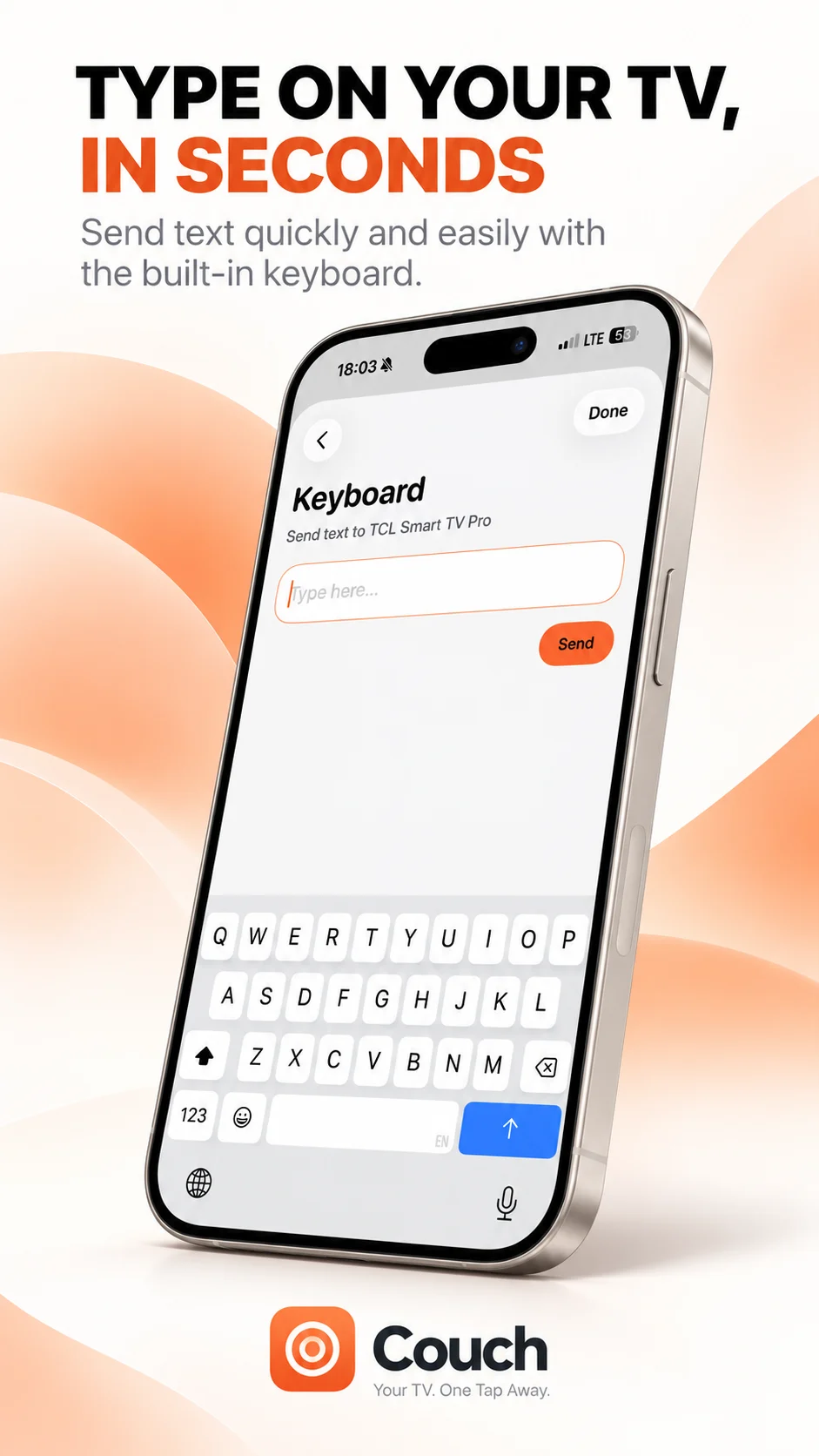
Your TV. One Tap Away.
Explore Couch’s remote, touchpad, keyboard and app shortcuts for compatible TVs.
Check compatibilityApp Store link coming soon