Identify what stopped working
Before changing settings, test a few actions and note the results. Does Power work while navigation fails? Does the television respond to its physical controller? Is only sound control affected? These observations help separate a remote issue from a TV or external-device problem. Record the TV model and remote type so you can follow the correct troubleshooting instructions.
Check batteries or charging first
Samsung lists low battery as a common cause of an unresponsive remote. Replace batteries in a model that uses removable cells, or charge a rechargeable remote using its supported method. Samsung documents USB-C charging and solar-cell charging for applicable remotes. Follow your remote’s instructions; do not try to open a sealed rechargeable model as if it had replaceable batteries.
Check the signal path and pairing
Remove objects that obstruct the remote’s path to the TV. If you have a Samsung Smart Remote, use the pairing instructions for your exact model. Button combinations are not interchangeable across all remotes. Keep the television on, watch for its pairing response and use Samsung’s model documentation if the connection fails. Avoid repeating an unrelated reset procedure found for a different controller.
Separate TV controls from external-device controls
If television menus work but a soundbar or streaming box does not respond, troubleshoot that device and its connection separately. Samsung provides Universal Remote Setup on supported models; availability and menu paths must be checked for your TV. List the failing action and the device it should affect. Replacing the TV remote may not resolve an external-device configuration problem.
Use the built-in controller to check TV response
Find the physical controller using your model manual and try its supported power or menu action. If the television responds, you have a way to continue basic checks while troubleshooting the remote. If neither the remote nor physical controls work, consult TV support rather than assuming an iPhone app will fix it. Avoid a factory reset as your first experiment: it can remove the setup you need to diagnose.
When an iPhone remote can help
A phone remote can be useful when the television supports it and the required connection is available. For Samsung’s SmartThings setup, check the documented network, account and pairing requirements. An already registered TV may be accessible through its existing entry. A new connection can require approval on the television, so keep a supported way to operate the TV during setup.
What to do if the problem continues
Collect the model number, remote type, charging or battery checks, and the actions that still work. Contact Samsung support with that information. Choose a replacement only after confirming compatibility. Couch can be considered as a phone-control option once its support for your model is confirmed. Use our Samsung app setup guide for SmartThings steps, or the TV-without-a-remote guide if your controller is missing altogether.
Official references
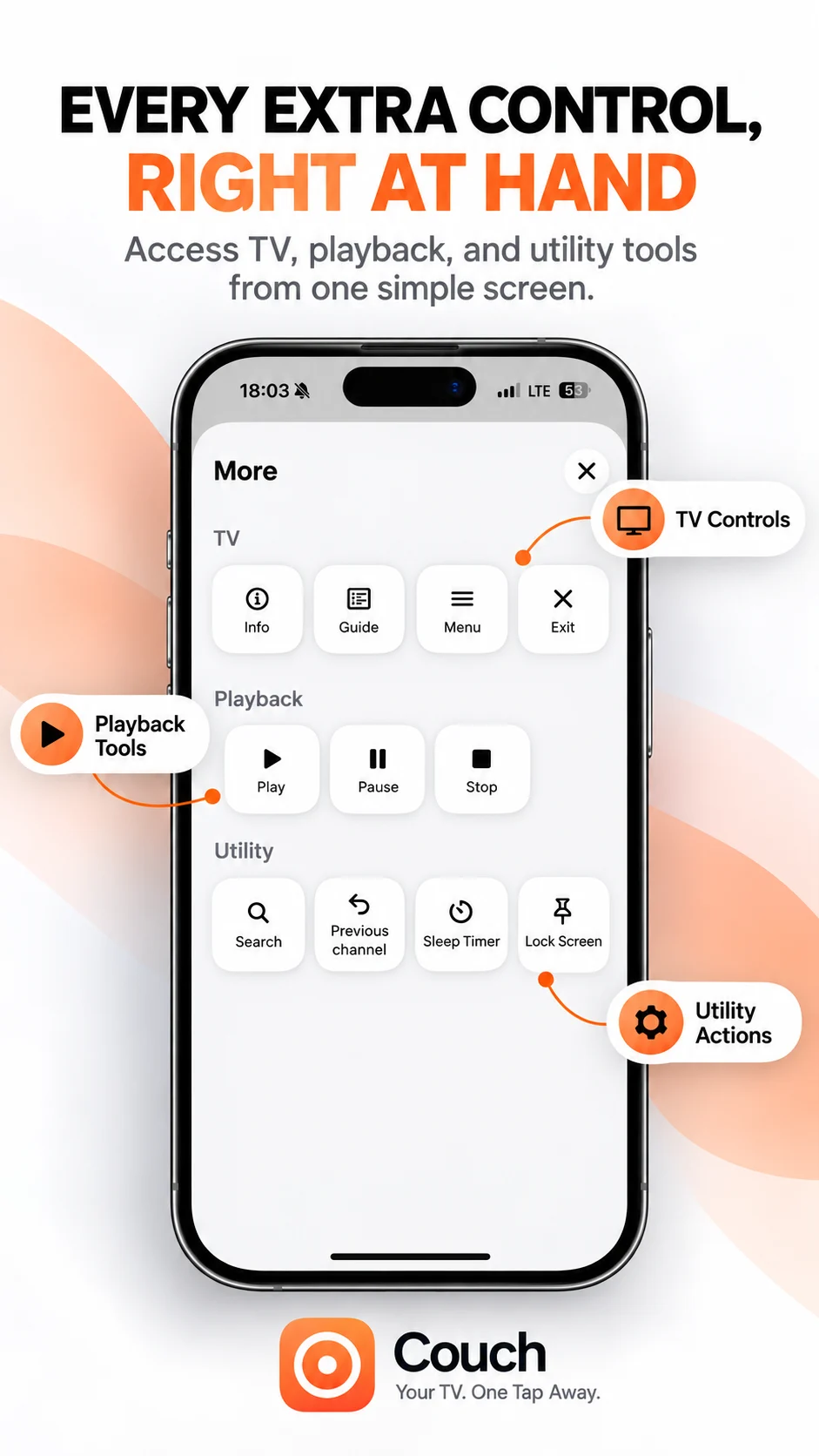
Your TV. One Tap Away.
Explore Couch’s remote, touchpad, keyboard and app shortcuts for compatible TVs.
Check compatibilityApp Store link coming soon